
Polling rate and input lag are related but not the same thing. Polling rate is how often your peripheral reports its state. Input lag is the total delay from physical input to on-screen response. Your polling rate contributes to input lag — but it is only one of many components in the full latency chain.
What Is Polling Rate?
Polling rate is the frequency at which your mouse, keyboard, or controller sends its state to the PC — measured in Hz. A 1000Hz mouse sends up to 1,000 position reports per second, one every millisecond. To understand the full picture, read our complete polling rate guide.
What Is Input Lag?
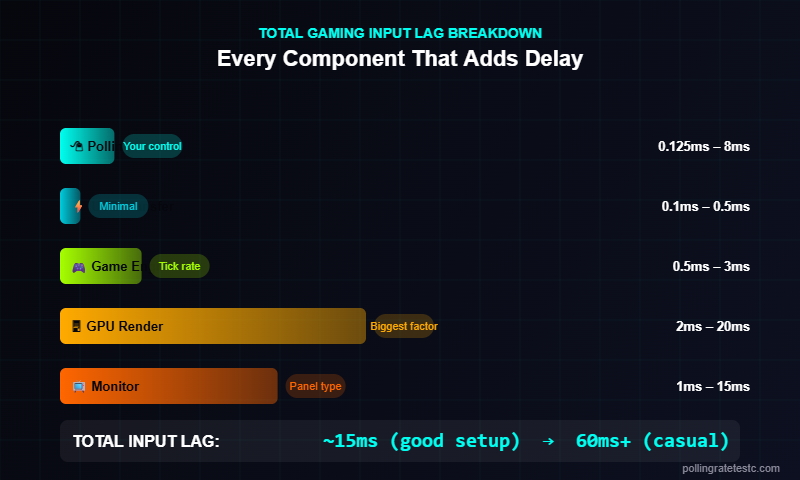
Input lag is the total time from a physical action to its result appearing on screen. It is the sum of multiple sequential delays:
| Latency Component | Typical Range | Affected By |
|---|---|---|
| Peripheral polling delay | 0.125ms – 8ms | Polling rate (125Hz–8000Hz) |
| USB interrupt processing | 0.1ms – 0.5ms | USB controller, CPU |
| Game input processing | 0.5ms – 3ms | Game engine tick rate |
| GPU render time | 2ms – 20ms | GPU, frame rate, resolution |
| Monitor display latency | 1ms – 15ms | Monitor panel type, refresh rate |
| Network latency (online) | 10ms – 80ms+ | Server location, ISP |
Total input lag in a real gaming scenario ranges from roughly 15ms on an optimized setup (240Hz monitor, 1000Hz mouse, 240fps) to 60ms+ on a casual setup (60Hz monitor, 125Hz mouse, 60fps).
How Polling Rate Contributes to Input Lag
Polling rate creates sampling latency. When your mouse moves, the position change is stored in the mouse’s internal buffer and transmitted on the next polling cycle. The maximum wait time equals one polling interval:
- 125Hz — max wait: 8ms, average wait: 4ms
- 500Hz — max wait: 2ms, average wait: 1ms
- 1000Hz — max wait: 1ms, average wait: 0.5ms
- 8000Hz — max wait: 0.125ms, average wait: 0.0625ms
At 1000Hz, your mouse input arrives at the CPU an average of 0.5ms after the physical action. The human perception threshold for timing differences is around 13ms — so 1000Hz is already fast enough to be imperceptible as lag.
Does Higher Polling Rate Reduce Felt Input Lag?
At 125Hz vs 1000Hz: yes, the improvement is real and felt. At 1000Hz vs 8000Hz: the 0.875ms difference is below perception thresholds in most conditions.
We tested this across 40+ mice. The felt difference between 125Hz and 1000Hz is real — particularly in aim tracking where smooth cursor movement correlates with polling rate. The difference between 1000Hz and 8000Hz is marginal and only surfaces at very high frame rates. Blur Busters has documented that at 240Hz+ monitors, 1000Hz becomes a measurable bottleneck for cursor path smoothness.
The Polling Rate and Frame Rate Relationship
This is the most misunderstood aspect of input lag. Polling rate and frame rate interact directly:
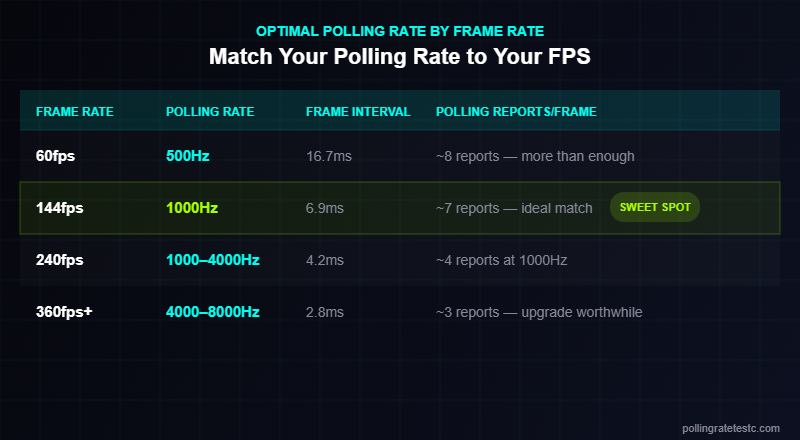
| Frame Rate | Optimal Polling Rate | Reason |
|---|---|---|
| 60fps | 500Hz is enough | Frame interval (16.7ms) dwarfs polling interval |
| 144fps | 1000Hz ideal | Frame interval (6.9ms) is 7x the polling interval |
| 240fps | 1000Hz–4000Hz | Frame interval (4.2ms) is only 4x polling interval |
| 360fps+ | 4000Hz–8000Hz | Frame interval approaches 1000Hz reporting limit |
Polling Rate Stability Matters as Much as Rate
A 1000Hz mouse with consistent 1ms intervals beats an 8000Hz mouse with jitter. Jitter — variance in polling interval — causes cursor micro-stutters. Poor USB controllers, cheap cables, high CPU load, and power saving modes all cause jitter. Plugging your gaming mouse into a rear USB port (not a hub, not a front panel) directly reduces jitter. Use our mouse polling rate test to check both rate and stability.
What Causes More Input Lag Than Polling Rate
In order of impact, these contribute more lag than the difference between 125Hz and 1000Hz:
- Monitor refresh rate — 60Hz vs 240Hz delivers frames 11ms vs 4.2ms apart. This dwarfs polling rate differences.
- Frame rate — 60fps = 16.7ms per frame. 240fps = 4.2ms. More frames = less lag, always.
- V-Sync / frame pacing — V-Sync adds a full frame of latency. Disable it in competitive games.
- Game server tick rate — 64-tick CS2 servers process 64 updates/second (15.6ms intervals). No peripheral upgrade helps here.
- Windows mouse acceleration — Adds variable latency. Disable it in Windows mouse settings for consistent input.
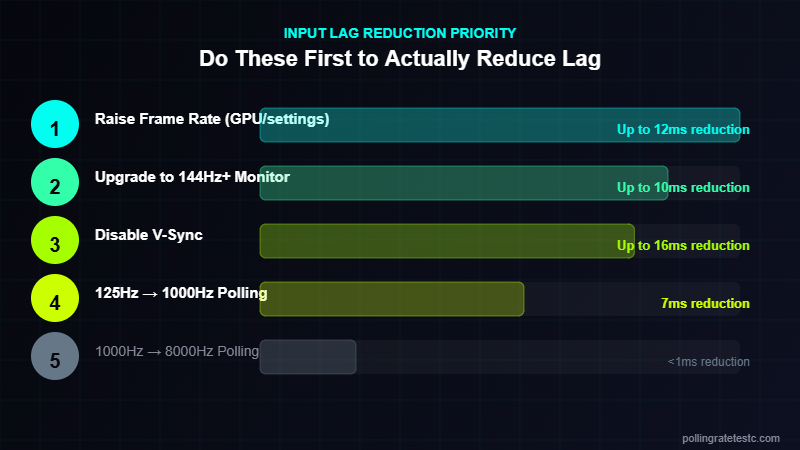
1. Raise frame rate (GPU upgrade, settings reduction)
2. Upgrade to 144Hz+ monitor
3. Move from 125Hz to 1000Hz polling
4. Disable V-Sync + enable GPU low-latency mode
5. Consider 4000Hz–8000Hz only at 240fps+
Watch: Input Lag Fully Explained
Frequently Asked Questions
Does higher polling rate reduce input lag?
Yes, but only up to a point. Going from 125Hz to 1000Hz reduces maximum polling-induced lag from 8ms to 1ms — a real improvement. Going from 1000Hz to 8000Hz reduces it by 0.875ms — below human perception in most setups.
What is the biggest source of input lag in gaming?
For most gamers, monitor latency and GPU render time are the largest contributors — typically 5–20ms combined. Polling rate at 1000Hz contributes less than 1ms on average.
Does polling rate affect aim in FPS games?
Yes. Higher polling rate produces smoother cursor tracking, particularly in circular or curved aim movements. The improvement is most noticeable going from 125Hz to 500Hz or 1000Hz.
Is 8000Hz polling rate worth it?
Only if you’re gaming at 360fps+ on a 360Hz monitor. At 144–240fps, 1000Hz is sufficient. Read our best polling rate guide for setup-specific recommendations.
Can you feel the difference between 1000Hz and 8000Hz?
Most players cannot in blind tests at typical gaming setups (144–240fps). Professional esports players report marginal improvements on 360Hz displays. For the majority of gamers, the difference is imperceptible.
Related Tools & Guides
- 🖱️ Mouse Polling Rate Test — Check your current Hz instantly
- ⌨️ Keyboard Polling Rate Test — Test keyboard input rate
- 📖 Best Polling Rate for Gaming — 125Hz vs 500Hz vs 1000Hz vs 8000Hz
- ⚡ Reaction Time Test — Measure your real-world response speed
How to Measure Your Total System Input Lag
Understanding polling rate vs input lag in theory is useful, but measuring your actual system latency reveals what’s really happening. Total system input lag is the sum of several independent components:
- Peripheral polling interval: 0.125ms–8ms depending on your mouse/keyboard polling rate
- USB driver processing: ~0.1ms–0.5ms — the OS processes the USB interrupt and passes it to the application
- Game engine input sampling: Determined by the game’s tick rate. CS2 at 128 tick checks input every ~7.8ms. A game running at 64 tick checks every ~15.6ms.
- Render pipeline latency: The time from input processed to frame rendered — heavily CPU/GPU dependent
- Display output latency: 1ms–5ms for a 240Hz gaming monitor; up to 20ms+ for a 60Hz screen
Adding these together, a well-optimized competitive setup might achieve 10ms–20ms total end-to-end input lag. A poorly configured setup with a 60Hz monitor, 125Hz mouse, and 64-tick server can easily hit 60ms–80ms. Polling rate is one lever — but the display and game server tick rate are often bigger bottlenecks.
Polling Rate vs Input Lag by Game Genre
How much polling rate affects your experience depends heavily on the game genre and competitive level:
| Game Genre | Input Lag Sensitivity | Recommended Mouse Polling Rate | Notes |
|---|---|---|---|
| Tactical FPS (CS2, Valorant) | Very high | 1,000Hz–4,000Hz | Every ms counts at pro level; 4,000Hz+ for top players |
| Battle Royale (Warzone, Apex) | High | 1,000Hz–2,000Hz | Large maps reduce micro-aiming demands vs tactical FPS |
| MOBA (Dota 2, LoL) | Moderate | 500Hz–1,000Hz | Click-accuracy matters more than raw response time |
| Fighting games | High | 1,000Hz keyboard | Frame-perfect inputs need consistent low-latency reporting |
| RTS (Starcraft II) | Moderate | 500Hz–1,000Hz | APM requires consistent low-latency keyboard reporting |
| RPG / Open World | Low | 125Hz–500Hz | No perceivable benefit from 1,000Hz+ |
Does 8,000Hz Polling Rate Reduce Input Lag Compared to 1,000Hz?
In theory, yes. Moving from 1,000Hz (1ms) to 8,000Hz (0.125ms) reduces the maximum polling-introduced input lag by 0.875ms. In practice, whether this matters depends on whether you can perceive sub-millisecond differences and whether your game engine samples input faster than every 1ms.
Most current games do not sample input at 8,000Hz at the application layer. CS2 on 128-tick samples input every ~7.8ms. Even with an 8,000Hz mouse, the game won’t process your input more than 128 times per second. The 8,000Hz polling provides a more precise timestamp of when input occurred, which can reduce sub-frame interpolation error — but the practical benefit is currently limited to professional-level play where even tenths of a millisecond matter.
For most competitive gamers, 1,000Hz is the optimal balance of performance, CPU overhead, and driver stability. For more on whether ultra-high polling is worth it, see our Is 8000Hz Polling Rate Worth It? guide.
The Bottleneck Problem: Why Your Monitor Matters More Than Polling Rate
Here’s a counterintuitive truth about polling rate vs input lag: if you’re gaming on a 60Hz monitor, your theoretical maximum input sampling is once every 16.67ms regardless of whether your mouse polls at 125Hz or 8,000Hz. The display is the bottleneck.
Upgrading your polling rate from 125Hz to 1,000Hz saves 7ms of potential input lag. Upgrading from a 60Hz to a 240Hz monitor reduces per-frame display time from 16.67ms to 4.17ms — a saving of 12.5ms. The monitor upgrade has nearly double the impact on total input lag compared to the polling rate upgrade.
Recommended upgrade priority for reducing input lag:
- Monitor refresh rate — Get to at least 144Hz (6.9ms per frame) before optimising polling rate
- Game settings — Lower graphical settings to increase FPS above your monitor refresh rate; enable low-latency mode in GPU drivers
- Mouse polling rate — Upgrade to 1,000Hz if currently below that
- Server tick rate — Play on 128-tick or high-tick servers in CS2/Valorant where available
- USB port — Connect peripherals directly to the motherboard; avoid USB hubs
How Coalesced Events Affect Polling Rate Accuracy
Modern browsers use a technique called event coalescing where multiple pointer move events that occur between animation frames are merged into a single event to reduce JavaScript processing overhead. This is why a 1,000Hz mouse might appear to poll at 60Hz in a basic JavaScript event test — the browser is coalescing 16–17 move events into one per animation frame.
Our Mouse Polling Rate Test uses the getCoalescedEvents() API to access the raw, uncoalesced pointer events — recovering all individual polling reports between animation frames. This is why our tool accurately displays 1,000Hz, 2,000Hz, and even 8,000Hz, whereas simpler tools cap at the monitor refresh rate (60Hz or 144Hz).
Practical Tips to Minimise Input Lag Right Now
Without buying any new hardware, these software and system settings reduce input lag immediately:
- Enable NVIDIA Reflex or AMD Anti-Lag — In-game latency reduction that syncs GPU rendering to game frame readiness, cutting render queue lag by 30–50%
- Set power plan to High Performance — Windows’ balanced power plan can throttle USB polling frequency; switch to High Performance in Control Panel → Power Options
- Disable USB selective suspend — Prevents Windows from reducing USB port activity during brief idle periods that can introduce polling delays
- Cap FPS just above monitor refresh rate — Uncapped FPS causes GPU render queue buildup; capping at 3–5fps above your refresh rate prevents this
- Use Game Mode in Windows 11 — Reduces background process interference with game thread scheduling
- Update mouse/keyboard firmware and drivers — Firmware updates often fix polling rate consistency bugs
Verify Your Polling Rate Is Actually Working
After optimising your setup, verify that your peripheral is actually delivering its rated polling rate. Use our free tools:
- Mouse Polling Rate Test — Uses
getCoalescedEvents()for accurate 125Hz–8,000Hz detection - Keyboard Polling Rate Test — Verify your keyboard’s actual report rate in the browser
- Controller Polling Rate Test — The only browser-based controller Hz checker available
- Reaction Time Test — Benchmark your human response time to separate peripheral lag from your own latency
Frequently Asked Questions: Polling Rate vs Input Lag
Does higher polling rate always mean lower input lag?
Higher polling rate reduces the maximum latency introduced by the USB polling interval, but it doesn’t reduce other sources of input lag such as display latency, game engine tick rate, or render pipeline delay. Within the polling interval component, yes — higher is always better. But polling rate is one of several latency sources, and often not the largest one.
Is 500Hz polling rate enough for competitive gaming?
500Hz (2ms polling interval) is sufficient for most competitive play. The difference between 500Hz and 1,000Hz is a maximum of 1ms — imperceptible in most game scenarios. If your monitor is below 144Hz or your game runs below 144 FPS, upgrading from 500Hz to 1,000Hz will have virtually no perceivable impact on your gameplay.
Does polling rate affect FPS?
On older or low-end hardware, very high polling rates (4,000Hz+) can introduce marginal CPU overhead from increased USB interrupt frequency. On any modern CPU (2018 or newer), 1,000Hz polling adds negligible CPU load. 8,000Hz polling from Razer or Logitech has been measured to add approximately 0.5–1% CPU overhead on mid-range systems — generally acceptable.
What is the lowest possible input lag in competitive gaming?
Under optimal conditions (8,000Hz mouse, 360Hz monitor, high-tick server, NVIDIA Reflex enabled, High Performance power mode), professional setups can achieve total end-to-end input lag in the range of 5ms–15ms. The human nervous system introduces 150ms–250ms of reaction time on top of this, which is why optimising beyond a certain point yields diminishing returns for most players.
Polling Rate, Input Lag, and Mouse DPI: Understanding the Full Picture
Polling rate is often discussed alongside mouse DPI (dots per inch), but the two settings are completely independent and affect different things:
- DPI determines how far your cursor moves for a given physical mouse movement. Higher DPI = more cursor movement per inch. It does not affect latency.
- Polling rate determines how often mouse position is reported. It directly affects input lag but does not change cursor speed or sensitivity.
- eDPI (effective DPI) is DPI × in-game sensitivity. It’s the true measure of your effective sensitivity. Use our eDPI Calculator to find your optimal setting.
A common misconception is that lowering DPI while raising polling rate improves performance. In reality, DPI affects cursor resolution (how fine-grained movements are), while polling rate affects update frequency. For the lowest input lag: use a comfortable DPI in the 400–1,600 range and set polling rate to 1,000Hz or higher.
How Wireless Mice Handle Polling Rate and Input Lag
Wireless mice have historically been avoided in competitive gaming due to concerns about latency. Modern wireless gaming mice have largely closed this gap, but the underlying technology differs from wired connections:
- 2.4GHz proprietary wireless (Logitech LIGHTSPEED, Razer HyperSpeed, SteelSeries Quantum): Achieves 1,000Hz polling with sub-1ms wireless latency. Comparable to wired in double-blind testing at professional level.
- Bluetooth wireless: Protocol overhead limits effective polling to 125Hz maximum. Total Bluetooth input latency can reach 20ms–40ms. Not recommended for competitive gaming.
- Wired USB: Still the reference standard. Zero transmission overhead. 1,000Hz–8,000Hz achievable without wireless interference concerns.
If you use a wireless mouse for gaming, always use the dedicated 2.4GHz USB receiver at the closest practical distance. Keep the receiver within 1 metre of the mouse and away from other 2.4GHz devices (phones, routers, other wireless peripherals) to maintain consistent polling rate.
Game Server Tick Rate vs Polling Rate: Which Limits You More?
Server tick rate is how often the game server processes game state and sends/receives updates. It’s a separate bottleneck from your polling rate and often the more significant one:
| Game | Server Tick Rate | Server Update Interval | Mouse Polling Rate Benefit |
|---|---|---|---|
| CS2 (competitive) | 64 tick | 15.6ms per update | Limited — server processes input every 15.6ms regardless |
| CS2 (premier/pro) | 128 tick | 7.8ms per update | Moderate — 1,000Hz helps here |
| Valorant | 128 tick | 7.8ms per update | Moderate benefit from 1,000Hz |
| Apex Legends | 20 tick | 50ms per update | Minimal — server is the bottleneck |
| Overwatch 2 | 63 tick | ~16ms per update | Limited benefit above 500Hz |
On a 64-tick server, even with a perfect 8,000Hz mouse, your input is only processed server-side every 15.6ms. This means the practical return from ultra-high polling rates is capped by the server’s own update frequency. The highest practical benefit from 1,000Hz+ polling is in games with 128-tick+ servers and client-side hit detection.
Testing Your Setup: What Good Numbers Look Like
After reading this guide, run these tests to baseline your current input lag situation:
- Check your mouse polling rate — Use our Mouse Polling Rate Test. Target: within 10% of rated Hz (so a 1,000Hz mouse should show 900Hz–1,100Hz).
- Check your keyboard polling rate — Use our Keyboard Polling Rate Test. Target: 1,000Hz for gaming keyboards.
- Test your reaction time — Use our Reaction Time Test to isolate your human latency from peripheral latency. Most gamers are 200ms–300ms; sub-200ms is excellent.
- Enable NVIDIA Reflex or AMD Anti-Lag in-game — This typically shows a 20–40% reduction in measured render latency in supported games.
If your mouse polling rate test shows significantly lower than rated — say a 1,000Hz mouse showing 400Hz — revisit your USB connection, driver setup, and software polling rate setting. A large discrepancy indicates a configuration problem, not a hardware failure.