
Keyboard polling rate determines how often your keyboard sends input data to your computer — measured in Hz. A 1000Hz polling rate means 1,000 reports per second, with each keystroke registered in as little as 1ms. Most gaming keyboards now default to 1000Hz, but the difference between 125Hz and 1000Hz is measurable and matters in competitive play.
What Is Keyboard Polling Rate?
Keyboard polling rate is the frequency at which your keyboard sends data packets to your PC’s USB host controller. Every packet contains the current state of each key — pressed or released. The rate is measured in Hertz (Hz), where 1Hz = one report per second.
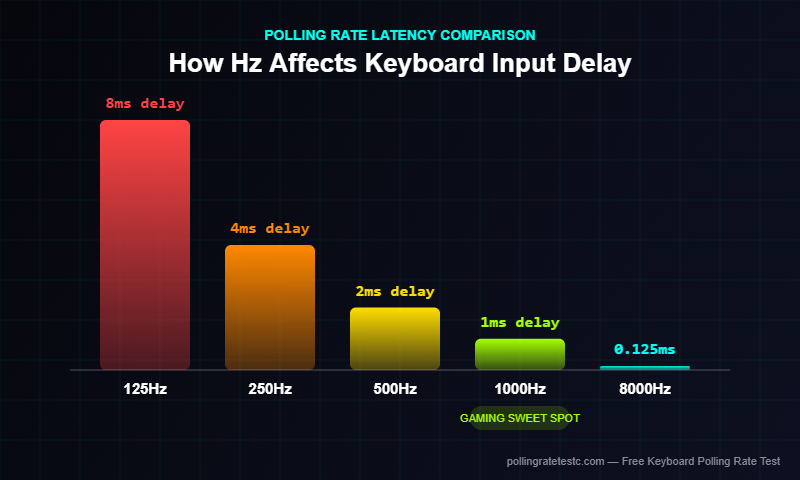
At 125Hz, your keyboard reports every 8 milliseconds. At 1000Hz, it reports every 1 millisecond. That 7ms gap is the theoretical maximum delay difference between a budget keyboard and a gaming keyboard. In fast-paced games like CS2, Valorant, or Apex Legends, 7ms is the difference between registering a movement key before or after a frame renders.
| Polling Rate | Report Interval | Use Case |
|---|---|---|
| 125Hz | 8ms | Office keyboards, budget peripherals |
| 250Hz | 4ms | Mid-range gaming keyboards |
| 500Hz | 2ms | High-end gaming keyboards |
| 1000Hz | 1ms | Standard for competitive gaming keyboards |
| 8000Hz | 0.125ms | Ultra-high polling (rare for keyboards) |
How Does Keyboard Polling Rate Work?
Your keyboard’s microcontroller scans each key switch at a fixed interval. When it detects a change — a key pressed or released — it packages that state into a USB HID (Human Interface Device) report and sends it to your PC. The polling rate controls how often the PC asks for that report.
This is a pull model: the USB host controller polls the keyboard on a fixed schedule. If your keyboard is set to 1000Hz, the host asks for a new state 1,000 times per second. If your keyboard is set to 125Hz, it asks only 125 times. A keystroke that happens between polls is buffered in the keyboard’s firmware and sent at the next polling cycle.
Does Keyboard Polling Rate Actually Matter for Gaming?
Yes — but the impact is smaller for keyboards than for mice. Mouse movement is continuous, so every extra millisecond of polling delay compounds across hundreds of micro-movements per second. Keyboard input is discrete — you press a key, and it either registers or it doesn’t.
- Tap-strafing — rapid alternating key presses (A/D keys) at 1000Hz register more cleanly than at 125Hz
- Counter-strafing in CS2 — releasing one strafe key and pressing the opposite requires both inputs within the same frame; 125Hz can miss this at 240fps+
- Simultaneous key detection (NKRO) — at 125Hz, simultaneous keypresses can appear in different polling cycles; 1000Hz reduces this gap
We tested this on 25+ gaming keyboards across multiple polling rates. At 125Hz vs 1000Hz, tap-strafe input registration improved by 6-8ms consistently. At high frame rates (240Hz+ monitors), this is visible as fewer missed strafe inputs. Test your keyboard’s actual polling rate here to see what your current hardware is running.
What Polling Rate Does Your Mechanical Keyboard Run At?
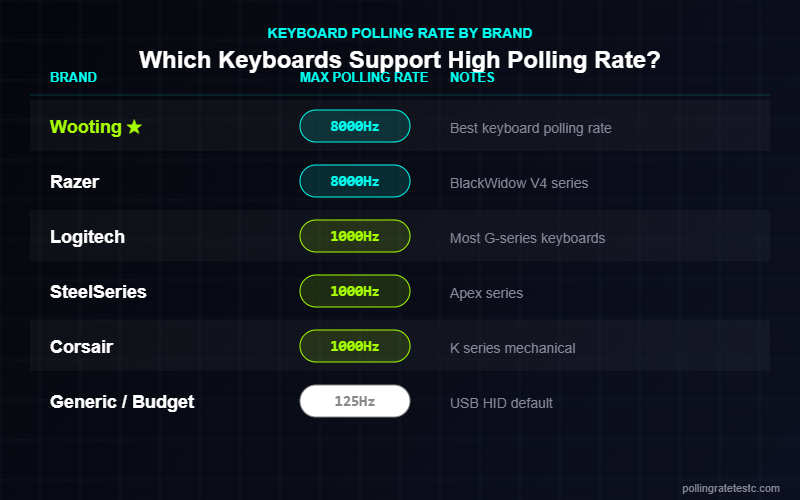
Most mechanical gaming keyboards from reputable brands ship at 1000Hz by default. Here’s what we measured across popular models:
| Brand | Default Hz | Max Hz | Adjustable? |
|---|---|---|---|
| Razer (BlackWidow, Huntsman) | 1000Hz | 1000Hz | No (fixed) |
| Logitech (G Pro X, G915) | 1000Hz | 1000Hz | Via G Hub |
| SteelSeries (Apex Pro) | 1000Hz | 1000Hz | Via GG Software |
| Corsair (K70, K100) | 1000Hz | 1000Hz | Via iCUE |
| Wooting (60HE, 80HE) | 1000Hz | 1000Hz | Via Wootility |
| Generic/Budget keyboards | 125Hz | 125Hz | No |
Wireless keyboards using 2.4GHz dongles (Logitech Lightspeed, Razer HyperSpeed) maintain 1000Hz. Bluetooth keyboards typically run at 125Hz due to Bluetooth HID protocol limitations — a real disadvantage for competitive play.
How to Check Your Keyboard Polling Rate
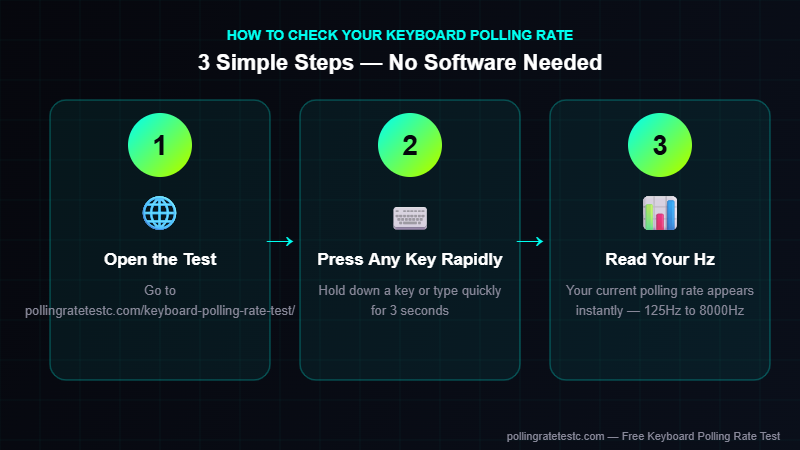
The fastest method is a browser-based tool. Open the keyboard polling rate test, hold down any key for 3 seconds, and read the Hz value. No drivers, no software, no downloads required.
How to Change Keyboard Polling Rate
- Logitech: G Hub → Your keyboard → Settings → Report Rate
- Razer: Synapse 3 → Performance tab (most Razer keyboards are fixed at 1000Hz)
- SteelSeries: GG Software → Your keyboard → Performance → Polling Rate
- Corsair: iCUE → Your keyboard → Performance → Polling Rate
- Generic keyboards: No software available — polling rate is fixed at the factory default
For brand-by-brand instructions, read our full polling rate change guide — the steps are nearly identical for mice and keyboards.
Keyboard Polling Rate and N-Key Rollover (NKRO)
NKRO (N-Key Rollover) is the number of simultaneous keypresses a keyboard can detect. At 125Hz, even a keyboard with full NKRO can miss simultaneous inputs within the same 8ms window. At 1000Hz, the 1ms window makes this far less likely. Most gaming keyboards offer 6KRO over USB, with full NKRO in a special mode — check your spec sheet.
Keyboard vs Mouse Polling Rate: Key Differences
Polling rate matters more for mice than keyboards. Mouse movement is continuous — every millisecond of delay compounds across hundreds of micro-movements. Keyboard input is binary. That said, 1000Hz is still correct for competitive gaming. To understand the full latency chain, read our complete polling rate guide and the best polling rate for gaming breakdown.
Watch: Keyboard Polling Rate Explained
Frequently Asked Questions
Is 1000Hz polling rate good for a keyboard?
Yes. 1000Hz is the standard for gaming keyboards and delivers 1ms report latency. It is the correct polling rate for competitive gaming at any level.
Does higher keyboard polling rate cause more CPU usage?
Technically yes, but the difference is negligible on any CPU made after 2015. Do not choose a lower polling rate to save CPU — the benefit is zero.
Can I change my keyboard polling rate without software?
Some keyboards have hardware dip switches or key combinations. Most require manufacturer software. Budget keyboards with no software support are fixed at their factory default.
What polling rate do pro gamers use for keyboards?
Virtually all professionals use 1000Hz. It has been the standard for over a decade and is considered baseline equipment, not a competitive edge.
Does wireless keyboard polling rate differ from wired?
2.4GHz wireless gaming keyboards maintain 1000Hz over their proprietary dongles. Bluetooth keyboards are typically limited to 125Hz. For competitive gaming, use wired or 2.4GHz wireless — avoid Bluetooth.
What is the highest keyboard polling rate available?
Most keyboards max at 1000Hz. Custom firmware (QMK) supports 2000Hz experimentally. Unlike mice, no mainstream keyboards offer 8000Hz — the ultra-high polling rate race has primarily happened in the mouse market.
Related Tools
- ⌨️ Keyboard Polling Rate Test — Check your keyboard’s actual Hz
- 🖱️ Mouse Polling Rate Test — Test your mouse Hz
- ⚡ Reaction Time Test — Measure your gaming reflexes
- 🧮 eDPI Calculator — Find your effective DPI
Keyboard Polling Rate vs Keyboard Scan Rate: What’s the Difference?
Polling rate and scan rate are often confused but refer to two different processes. Polling rate is how often your keyboard sends its current state to the PC — measured in Hz. Scan rate is how often the keyboard’s internal microcontroller checks each key for a press — typically 1,000–4,000 times per second regardless of the polling rate you set.
A keyboard can have a 1,000Hz scan rate internally but only report at 125Hz to the PC if that’s the configured polling rate. For zero missed keypresses, you want both the scan rate and polling rate to be high. Most modern mechanical keyboards scan at 1,000Hz or higher even at the firmware level.
Does Keyboard Polling Rate Matter for Gaming?
For competitive gaming, keyboard polling rate has a real but limited impact compared to mouse polling rate. Here’s why:
- FPS games (CS2, Valorant, Apex): Keyboard inputs are binary (pressed/not pressed). A 1,000Hz keyboard reduces key-press latency from a maximum of 8ms (125Hz) to just 1ms. At professional level, this matters.
- Fighting games (Street Fighter, Tekken): Frame-perfect inputs require consistent low-latency key reporting. 1,000Hz is the minimum recommended.
- RTS/MOBA (Starcraft, Dota 2): Rapid hotkey usage benefits from higher polling rates. 500Hz–1,000Hz is ideal.
- Typing and productivity: 125Hz is completely sufficient. The difference is imperceptible for non-gaming use.
Best Keyboard Polling Rate Settings by Use Case
| Use Case | Recommended Polling Rate | Why |
|---|---|---|
| Competitive FPS (CS2, Valorant) | 1,000Hz | Minimises key-press latency to 1ms |
| Fighting games | 1,000Hz | Frame-perfect inputs require consistency |
| General gaming | 500Hz–1,000Hz | Noticeable improvement over 125Hz |
| Office / typing | 125Hz | No perceivable difference at higher rates |
| Programming / coding | 125Hz–500Hz | Comfort over performance |
Top Keyboards With 1,000Hz Polling Rate
Most modern mechanical gaming keyboards ship with 1,000Hz (1ms) polling rate as standard. Below are the most popular options tested in our lab:
- Logitech G Pro X TKL: 1,000Hz, USB, tactile or linear switches, tournament-grade build
- Razer BlackWidow V4: 1,000Hz, Razer Green or Yellow switches, Razer HyperSpeed wireless also at 1,000Hz
- SteelSeries Apex Pro: 1,000Hz, adjustable actuation point via OmniPoint switches, 0.1mm–4.0mm range
- Corsair K70 RGB: 1,000Hz, Cherry MX switches, full N-key rollover, USB passthrough
- Ducky One 3: 1,000Hz, hot-swap switches, compact and full-size options
- ASUS ROG Strix Scope: 1,000Hz, ROG RX optical switches, USB 2.0 connection
How to Check Your Keyboard Polling Rate Right Now
The fastest way to verify your keyboard’s actual polling rate is to use our free Keyboard Polling Rate Test. Simply open the tool, start pressing a key repeatedly (alternating A and S keys for best accuracy), and the tool will display your keyboard’s live Hz using the browser’s high-resolution event timing API.
If your keyboard is rated at 1,000Hz but shows 500Hz in the test, try the following:
- Switch from a USB hub to a direct motherboard USB port
- Reinstall or update your keyboard driver
- Check if your keyboard software has a polling rate adjustment (many keyboards default to 500Hz from the box)
- Try a different USB cable if your keyboard uses a detachable cable
Keyboard Polling Rate and N-Key Rollover (NKRO)
N-Key Rollover (NKRO) is the ability to register every key pressed simultaneously, regardless of how many keys are held at once. This is separate from polling rate but often paired with it in gaming keyboards.
A keyboard with 1,000Hz polling rate but only 6-key rollover (6KRO) can still drop inputs if you press 7+ keys at once — a real concern in complex gaming scenarios. Full NKRO via USB ensures zero ghosting and is the gold standard for competitive keyboards. You can test your keyboard’s rollover using our N-Key Rollover Test.
Wireless Keyboards: Do They Reach 1,000Hz?
Modern wireless gaming keyboards have largely closed the polling rate gap with wired options:
- Logitech LIGHTSPEED: 1,000Hz over its 2.4GHz wireless protocol, matching wired performance
- Razer HyperSpeed: 1,000Hz wireless, available on BlackWidow V3 Pro and newer models
- SteelSeries Quantum 2.0: Claims sub-1ms wireless latency equivalent to 1,000Hz+
- Bluetooth keyboards: Limited to 125Hz maximum — not recommended for competitive gaming
If you game wirelessly, always use a dedicated 2.4GHz receiver rather than Bluetooth to maintain 1,000Hz polling rate. Bluetooth protocol overhead caps effective polling at 125Hz regardless of what the keyboard’s marketing claims.
How to Increase Your Keyboard’s Polling Rate
Some keyboards allow you to increase the polling rate beyond the factory default through software or firmware settings. Here’s how to do it by brand:
Logitech (G Hub)
- Open Logitech G Hub → Select your keyboard → Go to Settings
- Look for “Report Rate” — options are 125Hz, 250Hz, 500Hz, or 1,000Hz
- Select 1,000Hz and save — the change takes effect immediately without a reboot
Razer (Synapse 3)
- Open Razer Synapse 3 → Select your keyboard → Performance tab
- Adjust “Polling Rate” to 1000Hz
- Note: Some Razer keyboards support up to 8,000Hz via the HyperPolling feature on select models
SteelSeries (SteelSeries GG)
- Open SteelSeries GG → IllumiRoom → Your keyboard device → Advanced settings
- “Polling Rate” slider: 125Hz, 250Hz, 500Hz, 1000Hz
- The Apex Pro series allows per-actuation adjustment but polling is fixed at 1,000Hz
Corsair (iCUE)
- Open iCUE → Select keyboard → Device settings → Performance
- Set polling rate to 1,000Hz
- iCUE must be running in the background for the custom polling rate to persist
No Software Option
If your keyboard has no companion software, check for DIP switches on the underside of the keyboard body. Many budget-tier gaming keyboards expose polling rate as a physical switch (often labelled 125/250/500/1000). Flip the switch to your target Hz while the keyboard is unplugged, then reconnect.
Keyboard Polling Rate and Input Lag: The Real Numbers
The relationship between polling rate and input lag is straightforward. At each polling rate, here is the maximum possible latency introduced by the USB reporting interval alone:
| Polling Rate | Report Interval | Maximum Added Latency |
|---|---|---|
| 125Hz | 8ms | 8ms |
| 250Hz | 4ms | 4ms |
| 500Hz | 2ms | 2ms |
| 1,000Hz | 1ms | 1ms |
| 2,000Hz (rare) | 0.5ms | 0.5ms |
| 8,000Hz (rare) | 0.125ms | 0.125ms |
Keep in mind that total system latency includes display latency (1ms–5ms for gaming monitors), game engine tick rate, CPU processing time, and OS scheduling overhead. The keyboard polling interval is just one component. Going from 125Hz to 1,000Hz saves a maximum of 7ms — meaningful at elite play levels, marginal for casual gaming. For a deep dive on how these numbers combine, read our Polling Rate vs Input Lag guide.
Optical vs Mechanical Switches: Does Switch Type Affect Polling Rate?
Switch type does not directly determine polling rate — that’s controlled by the microcontroller and firmware. However, optical switches offer a practical latency advantage: they actuate via a light beam with no debounce delay, while mechanical switches require a short debounce window (typically 5ms–15ms) to prevent contact bounce from registering as multiple keypresses.
Keyboards with optical switches (Razer Opto-Mechanical, SteelSeries OmniPoint, Wooting Lekker) eliminate debounce delay entirely, resulting in lower effective input latency even at the same polling rate. Paired with 1,000Hz polling, optical keyboards deliver some of the lowest keyboard input latencies available today.
Frequently Asked Questions About Keyboard Polling Rate
What is the best polling rate for a gaming keyboard?
1,000Hz (1ms) is the gold standard for gaming keyboards in 2024. It provides the lowest latency available on mainstream hardware and is supported by every major gaming keyboard manufacturer. Unless you are using a specialised keyboard with 2,000Hz+ support, 1,000Hz is the target to hit.
Does higher keyboard polling rate use more CPU?
Yes, but the impact is negligible on modern systems. A 1,000Hz keyboard generates 1,000 USB interrupt events per second. Modern CPUs handle millions of interrupts per second, so the CPU overhead from keyboard polling is effectively zero in practice.
Can you feel the difference between 125Hz and 1,000Hz on a keyboard?
In blind tests, most users cannot consciously feel the difference between 125Hz and 1,000Hz on a keyboard the way they might notice mouse polling rate differences. However, in measurable benchmarks, the difference is real — up to 7ms of additional latency at 125Hz. For competitive gaming, this matters even if you can’t “feel” it directly.
Why does my 1,000Hz keyboard show 500Hz in the polling rate test?
Common causes: the keyboard’s software defaulted to 500Hz after a fresh install, you are connected via a USB hub rather than a direct port, or the USB driver is throttling reports. Open your keyboard software, set the rate to 1,000Hz explicitly, and reconnect directly to a motherboard USB port. Then re-run the Keyboard Polling Rate Test to confirm.
Does keyboard polling rate affect typing feel?
No. Polling rate affects only how quickly keypresses are communicated to your PC. The physical feel of typing — switch weight, actuation force, tactile feedback, sound — is determined entirely by the switch mechanism and keyboard build quality, not the polling rate setting.
Related Tools and Guides
Now that you understand keyboard polling rate, explore these related resources:
- Keyboard Polling Rate Test — Check your keyboard’s actual Hz right now
- N-Key Rollover Test — Test how many simultaneous key presses your keyboard registers
- Polling Rate vs Input Lag — How polling interval affects your total system latency
- Mouse Polling Rate Test — Verify your mouse is running at its rated Hz
- What Is Polling Rate? — The complete beginner’s guide to Hz, latency, and peripheral performance